Frontend/UI Configuration
Configuration
Several aspects of the UI can be configured:
- Themes can be enabled to allow switching between light and dark modes
- The Dependencies section can be enabled / configured
- The Monitor tab (aka: Service Performance Monitoring) can be enabled / configured
- App analytics tracking can be enabled / configured (via Google Analytics or custom plugin)
- Additional menu options can be added to the global nav
- Search input limits can be configured
- Critical path visualization can be enabled
- Tag display priorities can be configured
- Various UI controls can be disabled for embedding scenarios
These options can be configured by a JSON configuration file given to query extension:
extensions:
  jaeger_query:
    ui:
      config_file: /path/to/config-ui.json
An example configuration file (see complete schema here):
{
  "dependencies": {
    "dagMaxNumServices": 200,
    "menuEnabled": true
  },
  "monitor": {
    "menuEnabled": true
  },
  "themes": {
    "enabled": true
  },
  "archiveEnabled": true,
  "tracking": {
    "gaID": "UA-000000-2",
    "trackErrors": true
  },
  "menu": [
    {
      "label": "About Jaeger",
      "items": [
        {
          "label": "GitHub",
          "url": "https://github.com/jaegertracing/jaeger"
        },
        {
          "label": "Docs",
          "url": "https://www.jaegertracing.io/docs/latest/"
        }
      ]
    }
  ],
  "search": {
    "maxLookback": {
      "label": "2 Days",
      "value": "2d"
    },
    "maxLimit": 1500
  },
  "linkPatterns": [{
    "type": "process",
    "key": "jaeger.version",
    "url": "https://github.com/jaegertracing/jaeger-client-java/releases/tag/#{jaeger.version}",
    "text": "Information about Jaeger release #{jaeger.version}"
  },
  {
    "type": "tags",
    "key": "uniqueId",
    "url": "https://mykibana.com/uniqueId=#{uniqueId}&traceId=#{trace.traceID}",
    "text": "Redirect to kibana to view log"
  },
  {
    "type": "traces",
    "url": "https://my-logs.server?from=#{startTime | add -60000000 | epoch_micros_to_date_iso}&to=#{endTime | add 60000000 | epoch_micros_to_date_iso}'",
    "text": "Redirect to kibana to view log with formatted dates"
  }],
  "traceIdDisplayLength": 20,
  "criticalPathEnabled": true,
  "topTagPrefixes": ["http.", "db."]
}
Themes (Light/Dark Mode)
Users can toggle between light and dark themes using a button in the top navigation. The selected theme is persisted in the browser’s local storage. If no theme is stored, the UI respects the user’s system preference (prefers-color-scheme).
{
  "themes": {
    "enabled": true
  }
}
themes.enabled enables (true) or disables (false) the theme toggle button. Default: false. If theme toggle is disabled the UI always uses the light theme.
Dependencies
dependencies.dagMaxNumServices defines the maximum number of services allowed before the DAG dependency view is disabled. Default: 200.
dependencies.menuEnabled enables (true) or disables (false) the dependencies menu button. Default: true.
Monitor
monitor.menuEnabled enables (true) or disables (false) the Monitor menu button. Default: false.
monitor.docsLink specifies a URL to documentation about Service Performance Monitoring. When set, a help link is displayed in the Monitor tab.
monitor.emptyState allows customizing the empty state display when no monitoring data is available:
{
  "monitor": {
    "menuEnabled": true,
    "docsLink": "https://www.jaegertracing.io/docs/latest/spm/",
    "emptyState": {
      "mainTitle": "Get started with Service Performance Monitoring",
      "subTitle": "No data available",
      "description": "Configure your services to emit RED metrics.",
      "info": "Additional information text",
      "alert": {
        "message": "SPM requires metrics storage backend",
        "type": "info"
      }
    }
  }
}
Archive Support
archiveEnabled enables (true) or disables (false) the archive traces button. Default: false. It requires a configuration of an archive storage in Query service. Archived traces are only accessible directly by ID, they are not searchable.
App Analytics Tracking
tracking.gaID defines the Google Analytics tracking ID. This is required for Google Analytics tracking, and setting it to a non-null value enables Google Analytics tracking. Default: null.
tracking.customWebAnalytics defines a factory function for a custom tracking plugin (only when using Javascript-form of UI configuration).
tracking.trackErrors enables (true) or disables (false) error tracking. Errors can only be tracked if a valid analytics tracker is configured. Default: true.
For additional details on app analytics see the tracking README in the UI repo.
Custom Menu Items
menu allows additional links to be added to the global nav. The additional links are right-aligned.
In the sample JSON config above, the configured menu will have a dropdown labeled “About Jaeger” with sub-options for “GitHub” and “Docs”. The format for a link in the top right menu is as follows:
{
  "label": "Some text here",
  "url": "https://example.com"
}
Links can either be members of the menu Array, directly, or they can be grouped into a dropdown menu option. The format for a group of links is:
{
  "label": "Dropdown button",
  "items": [ ]
}
The items Array should contain one or more link configurations.
Search Input Limit
The search.maxLimit configures the maximum results that the input let you search.
The search.maxLookback configures the maximum time before the present users can query for traces. The options in the Lookback dropdown greater than this value will not be shown.
| Field | Description |
|---|---|
| label | The text displayed in the search form dropdown |
| value | The value submitted in the search query if the label is selected |
Link Patterns
The linkPatterns node can be used to create links from fields displayed in the Jaeger UI.
| Field | Description |
|---|---|
| type | The metadata section in which your link will be added: process, tags, logs, traces |
| key | The name of tag/process/log attribute which value will be displayed as a link, this field is not necessary for type traces. |
| url | The URL where the link should point to, it can be an external site or relative path in Jaeger UI |
| text | The text displayed in the tooltip for the link |
Both url and text can be defined as templates (i.e. using #{field-name}) where Jaeger UI will dynamically substitute values based on tags/logs/traces data.
For traces, the supported template fields are: duration, endTime, startTime, traceName and traceID.
Further, the trace template fields are available for substitution in process/logs/tags type when the trace template fields are prefixed with trace.. For example: trace.traceID, trace.startTime.
Formatting
In addition to interpolating fields into links, formatting functions can be used. The syntax is #{field | function} (eg #{endTime | epoch_micros_to_date_iso}'). Formatting functions can be chained together (eg #{startTime | add 60000000 | epoch_micros_to_date_iso}).
The available formatting functions and a description of their behavior are:
epoch_micros_to_date_iso
Format a date in microseconds since epoch to an ISO date time.
Example:
#{endTime | epoch_micros_to_date_iso}
pad_start
Pad the start of a string with a given character until the resulting string reaches the given length. Behavior is implemented by and thus matches javascript’s String.padStart
Arguments:
targetLength(integer) - Desired length of the string after paddingpadCharacter(string) - String to pad the start of the input string with
Example: #{traceID | pad_start 32 0}
add
Add a value to another number. Can be positive or negative.
Arguments:
offset(integer) - Value to add to the input number
Example: #{startTime | add 1000000}
Trace ID Display Length
The traceIdDisplayLength setting controls how many characters of the trace ID are displayed in the Jaeger UI (e.g., in the trace list or trace detail header). This is useful for improving readability or aligning with trace IDs in other systems like logs or dashboards.
| Field | Description |
|---|---|
traceIdDisplayLength | Optional. Integer value that determines the number of characters shown from the trace ID. Default is 7. |
Example:
{
  "traceIdDisplayLength": 12
}
This will display trace IDs like: 1a2b3c4d5e6f (instead of the full 32-character ID or default 7-character).
Critical Path
criticalPathEnabled enables (true) or disables (false) the critical path visualization in the trace view. When enabled, the critical path of each span is highlighted, showing which operations are on the critical path of the overall trace duration. Default: true.
{
  "criticalPathEnabled": true
}
Top Tag Prefixes
topTagPrefixes defines a set of prefixes for span tag names that are considered “important” and cause the matching tags to appear higher in the list of span tags in span details. For example, setting topTagPrefixes to ["http."] would cause all span tags that begin with “http.” to be shown above all other tags.
{
  "topTagPrefixes": ["http.", "db.", "rpc."]
}
Trace Graph
traceGraph.layoutManagerMemory controls the total memory available for the GraphViz module instance used to render trace graphs. The value should be a power of two. The default of 16MB should be sufficient for most cases — only consider using a larger number if you run into the error “Cannot enlarge memory arrays”.
{
  "traceGraph": {
    "layoutManagerMemory": 33554432
  }
}
UI Controls
Several options allow disabling specific UI controls, which is useful for embedding scenarios or restricting functionality:
disableFileUploadControl disables (true) or enables (false) the file upload control for loading trace JSON files. Default: false.
disableJsonView disables (true) or enables (false) the JSON view option in the trace view. Default: false.
forbidNewPage when set to true, alters all link targets to prevent opening new browser tabs/windows. This is useful when embedding the UI in another application. Default: false.
{
  "disableFileUploadControl": true,
  "disableJsonView": true,
  "forbidNewPage": true
}
Embedded Mode
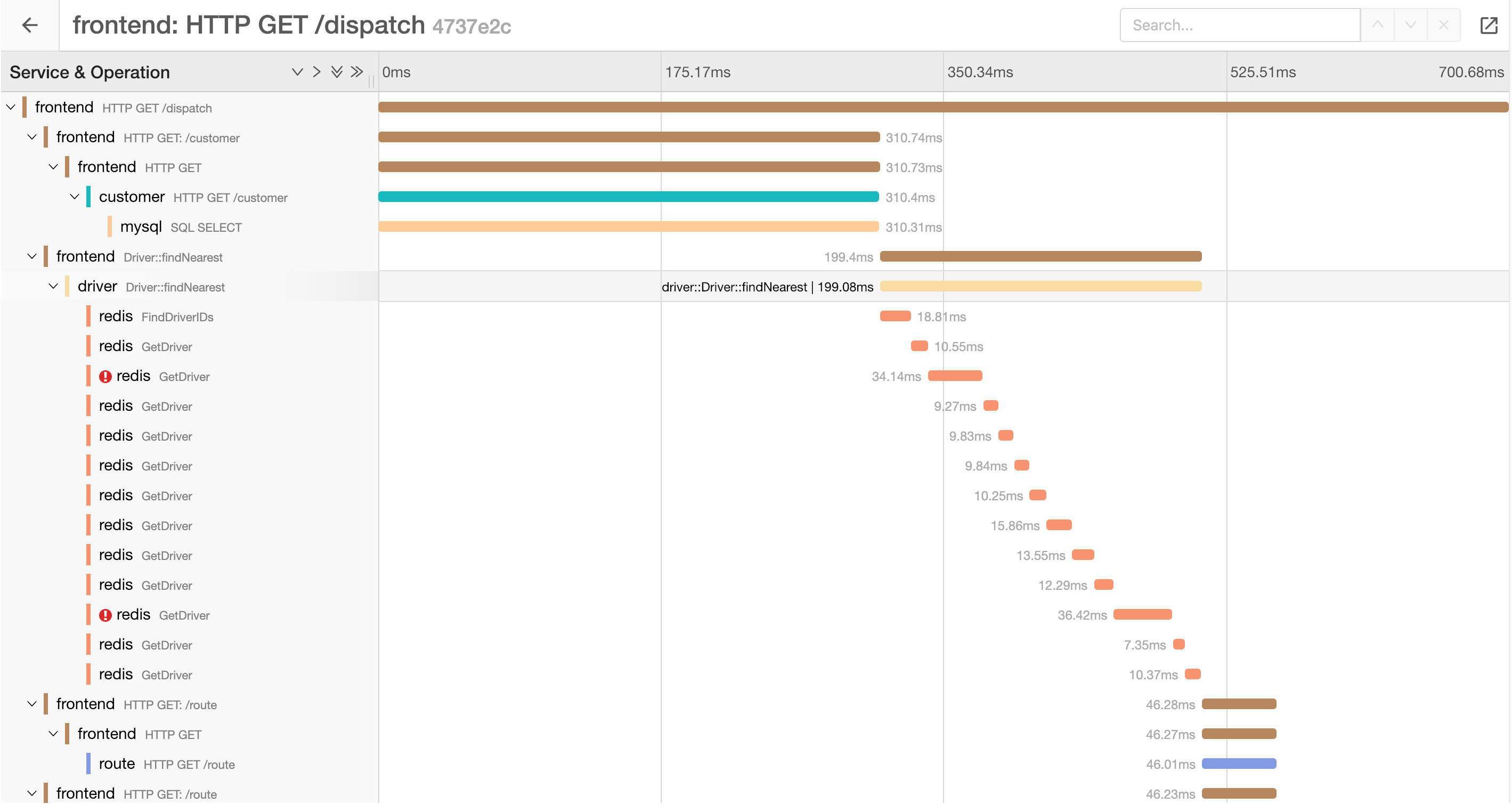
Starting with version 1.9, Jaeger UI provides an “embedded” layout mode which is intended to support integrating Jaeger UI into other applications. Currently (as of v0), the approach taken is to remove various UI elements from the page to make the UI better suited for space-constrained layouts.
The embedded mode is induced and configured via URL query parameters.
To enter embedded mode, the uiEmbed=v0 query parameter and value must be added to the URL. For example, the following URL will show the trace with ID abc123 in embedded mode:
http://localhost:16686/trace/abc123?uiEmbed=v0
uiEmbed=v0 is required.
Further, for each supported page a button  is added that will open the non-embedded page in a new tab.
The following pages support embedded mode:
- Search Page
- Trace Page
Search Page
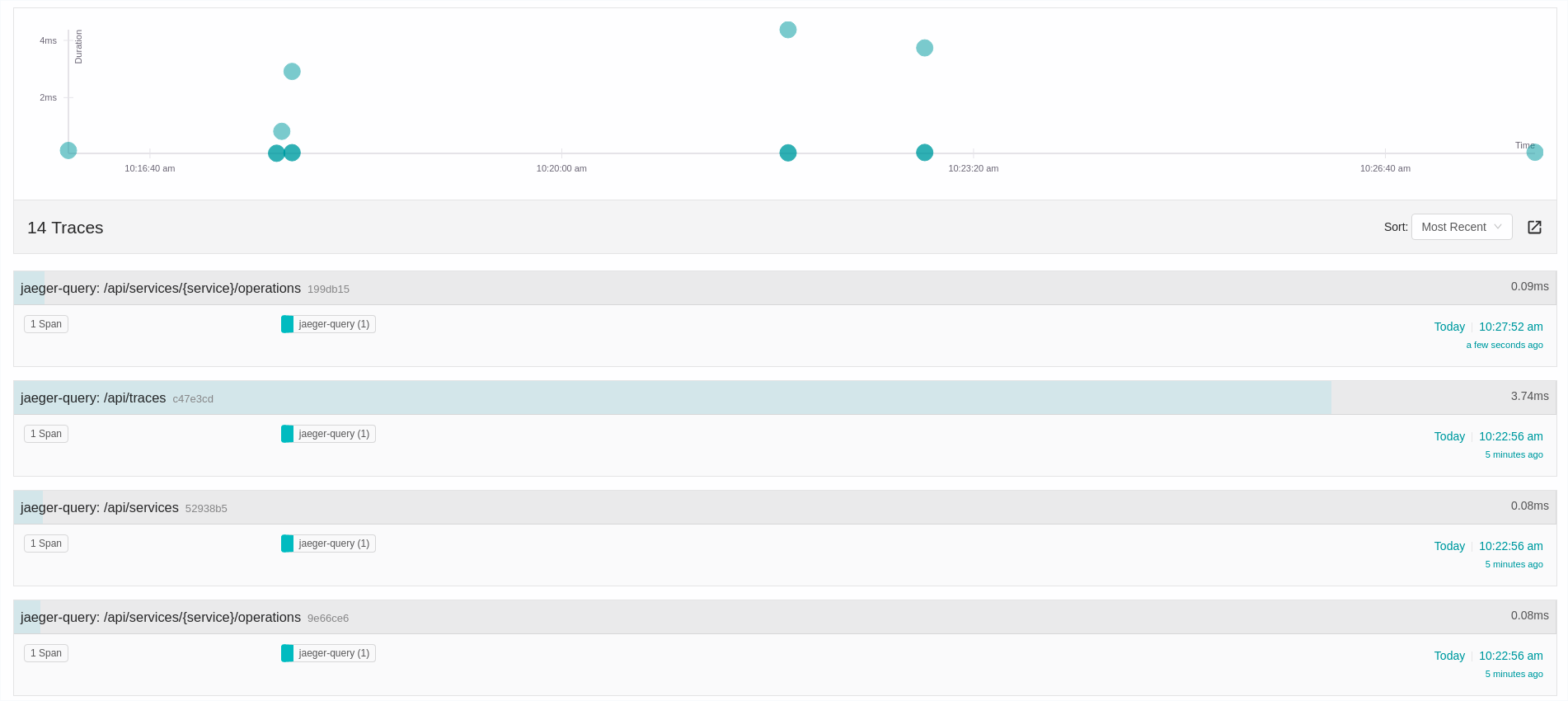
To integrate the Search Trace Page to our application we have to indicate to the Jaeger UI that we want to use the embed mode with uiEmbed=v0.
For example:
http://localhost:16686/search?
    service=my-service&
    start=1543917759557000&
    end=1543921359557000&
    limit=20&
    lookback=1h&
    maxDuration&
    minDuration&
    uiEmbed=v0
Configuration options
The following query parameter can be used to configure the layout of the search page :
uiSearchHideGraph=1- disables the display of the scatter plot above the search results
http://localhost:16686/search?
    service=my-service&
    start=1543917759557000&
    end=1543921359557000&
    limit=20&
    lookback=1h&
    maxDuration&
    minDuration&
    uiEmbed=v0&
    uiSearchHideGraph=1

Trace Page
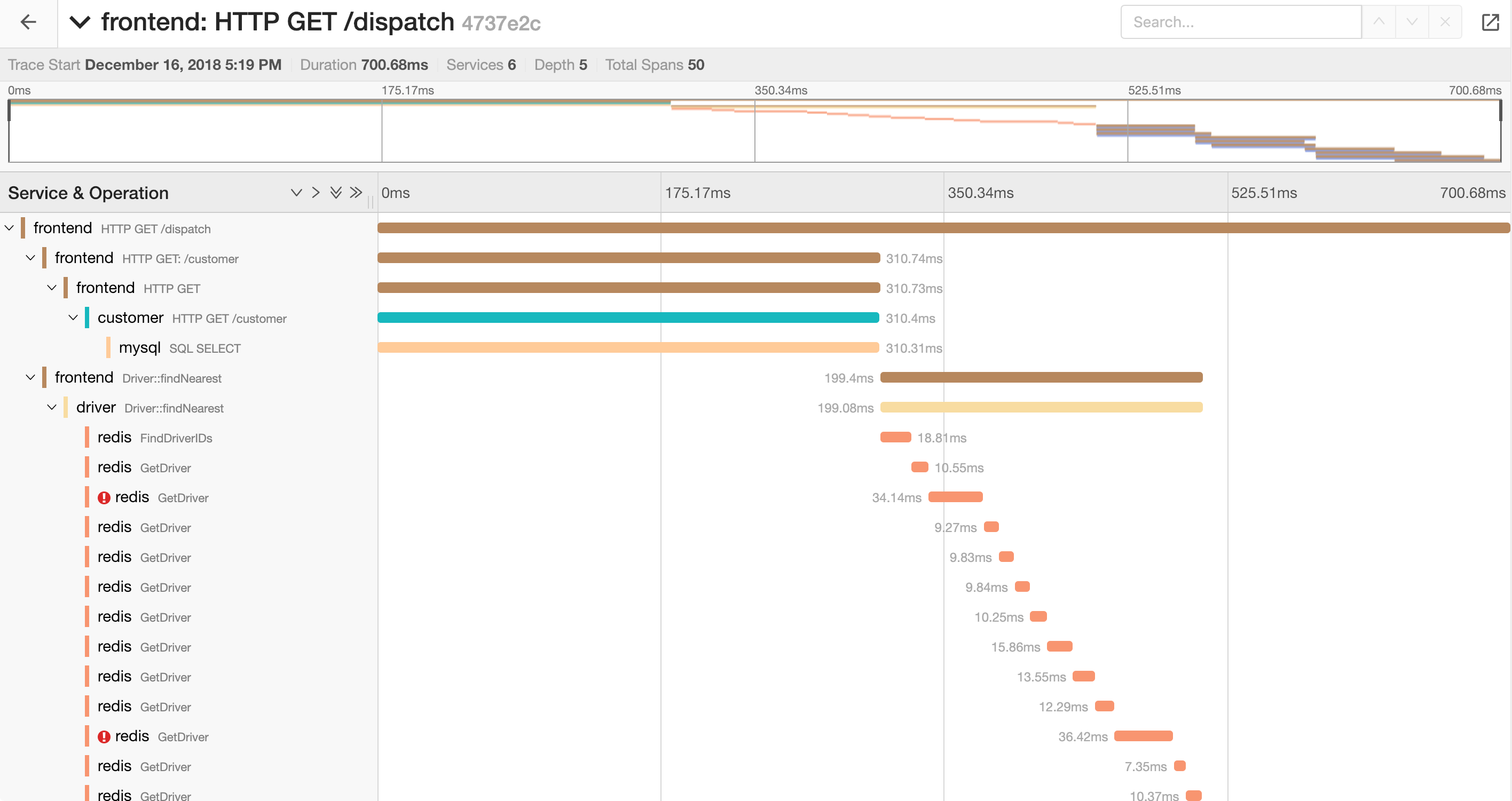
To integrate the Trace Page to our application we have to indicate to the Jaeger UI that we want to use the embed mode with uiEmbed=v0.
For example:
http://localhost:16686/trace/{trace-id}?uiEmbed=v0

If we have navigated to this view from the search traces page we’ll have a button to go back to the results page.
Configuration options
The following query parameters can be used to configure the layout of the trace page :
uiTimelineCollapseTitle=1causes the trace header to start out collapsed, which hides the summary and the minimap.
http://localhost:16686/trace/{trace-id}?
    uiEmbed=v0&
    uiTimelineCollapseTitle=1
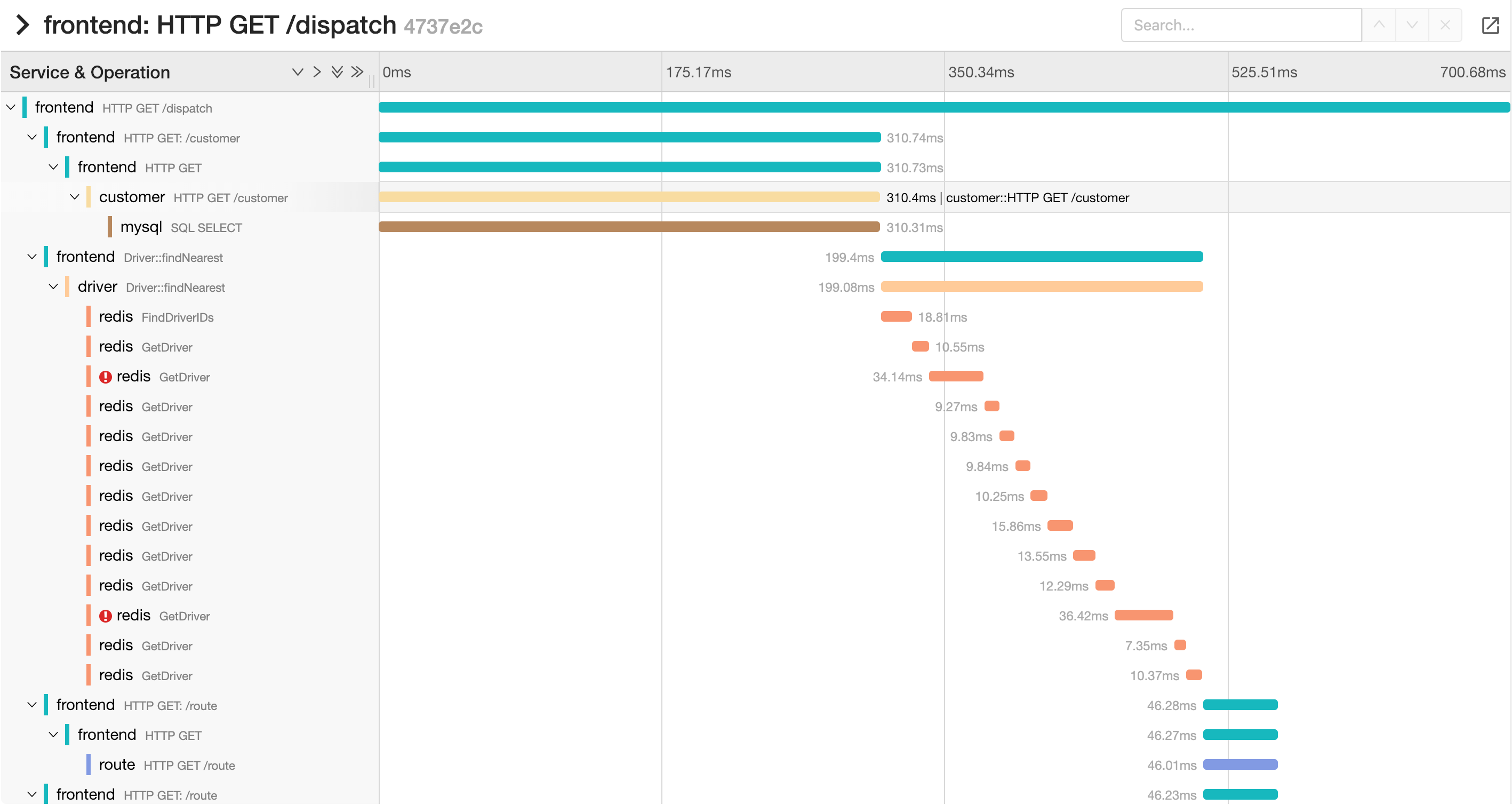
uiTimelineHideMinimap=1removes the minimap, entirely, regardless of whether the trace header is expanded or not.
http://localhost:16686/trace/{trace-id}?
    uiEmbed=v0&
    uiTimelineHideMinimap=1
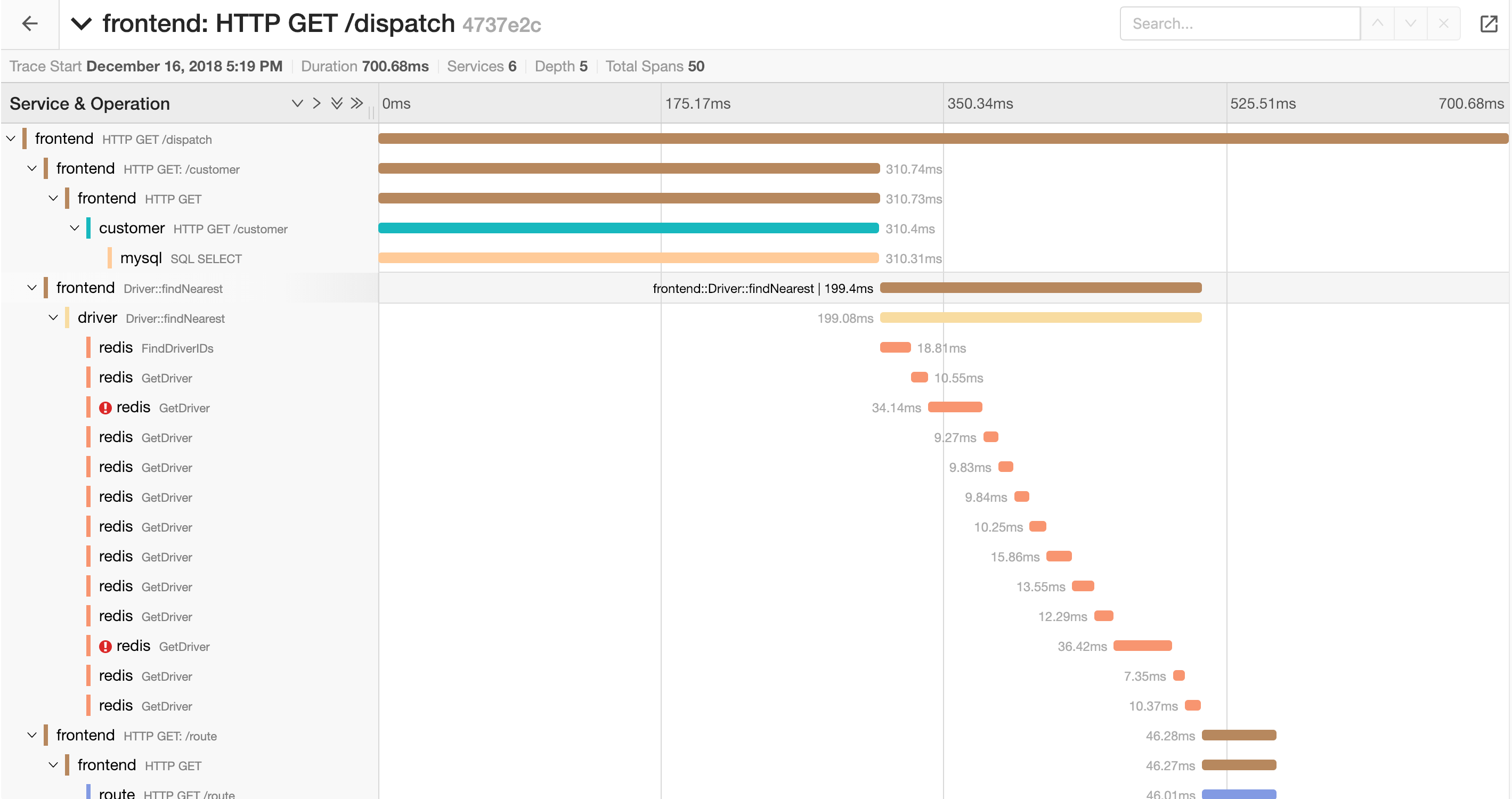
uiTimelineHideSummary=1- removes the trace summary information (number of services, etc.) entirely, regardless of whether the trace header is expanded or not.
http://localhost:16686/trace/{trace-id}?
    uiEmbed=v0&
    uiTimelineHideSummary=1
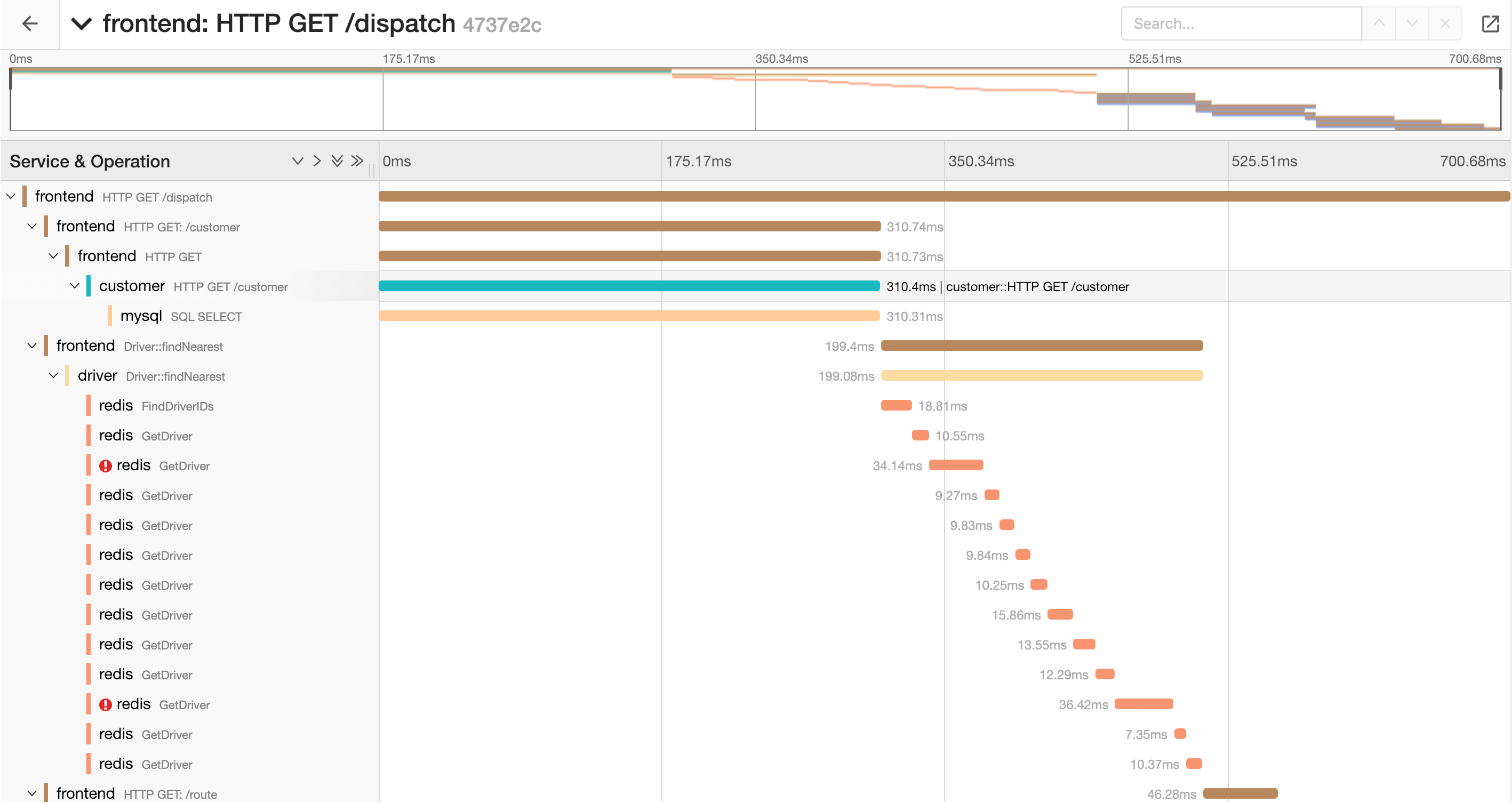
We can also combine the options:
http://localhost:16686/trace/{trace-id}?
    uiEmbed=v0&
    uiTimelineHideMinimap=1&
    uiTimelineHideSummary=1